


After reading Joel Salinas’s piece about using AI in browsers, I knew I was only scratching the surface with Claude on Chrome.
I mean, I’d been using it. Diagnosing web issues for my WordPress agency. Summarizing articles and videos. The usual stuff. It worked fine for that.
But where I missed the mark was execution. The doing part. The stuff that eats hours every week without me even noticing.
What Changed This Morning
This morning, I had Claude triage my inbox from the last two weeks of messages. Not just scan them. Actually sort through the chaos and surface what mattered.
Then it added two critical tasks to my calendar with links back to the original emails. Created a priority list of outstanding items. The whole thing took maybe fifteen minutes.
Here’s what that actually gave me: I could make decisions based on needs and urgency instead of funneling messages to figure it out myself.
That funneling? That’s the hidden time killer. You don’t track it because it doesn’t feel like work. It feels like checking email. But it’s actually decision fatigue dressed up as productivity.
The prompt I used:
Review my inbox from the last two weeks. Categorize messages by:
- Requires action from me (with urgency level)
- Waiting on someone else
- Reference/FYI only
- Can be archived or ignored

For anything urgent, identify the specific next step and suggest calendar time to handle it.
The Insurance Quote Experiment
Seeing how I want to get some new insurance quotes, I pulled a copy of my policies, extracted the details, and had Claude help me complete the quote forms.
If you’ve ever filled out insurance forms, you know the drill. They want the same information formatted slightly differently. Policy numbers here, coverage limits there, effective dates in this format, not that one. It’s tedious and error-prone.
With Claude seeing both the source documents and the quote form, it became actionable instead of a copy-paste marathon. Easy to complete a few quote requests.
The prompt I used:
I'm looking for new insurance quotes. Help me complete this quote form:
1. Fill in my standard info: [paste your details or reference open document]
2. For coverage questions, reference my current policy details
3. For coverage needs: [your requirements or "match current coverage"]
4. Review each completed section with me before proceeding

STOP before hitting submission.
And Yes, Still Solving Web Issues
Of course, I also solved some simple web issues. That’s still valuable. A client’s page wasn’t showing some errors, and instead of digging through dev tools myself, Claude diagnosed the issue in about thirty seconds. And it became a quick one-minute fix on my end.
The prompt I used:
This page isn't loading correctly. Check:
- Console errors (explain in plain English, not dev speak)
- What's failing to load and why
- Whether this is a browser/cache issue or a site problem
- Give me 2-3 things to try, starting with the simplest
That saved me precious time. But it’s also what I was already doing. The inbox triage and form completion? That’s new territory.
The Real Shift: Eliminating the Mental Refocus
Here’s the thing about working in the browser with context-aware AI: it helps eliminate the need to refocus across multiple screens or copy and paste.
Every time you switch tabs to grab information, then switch back to enter it somewhere else, your brain has to reorient.
Where was I?
What was I doing?
What comes next?
Multiply that by fifty times a day, and you’ve lost hours to context switching without ever being able to point to where they went.
When Claude can see what you’re looking at and what you’re working on simultaneously, that switching disappears. The information flows where it needs to go without you being the conduit.
What I’m Testing Next
I’ve got a few experiments queued up that align with how I actually work:
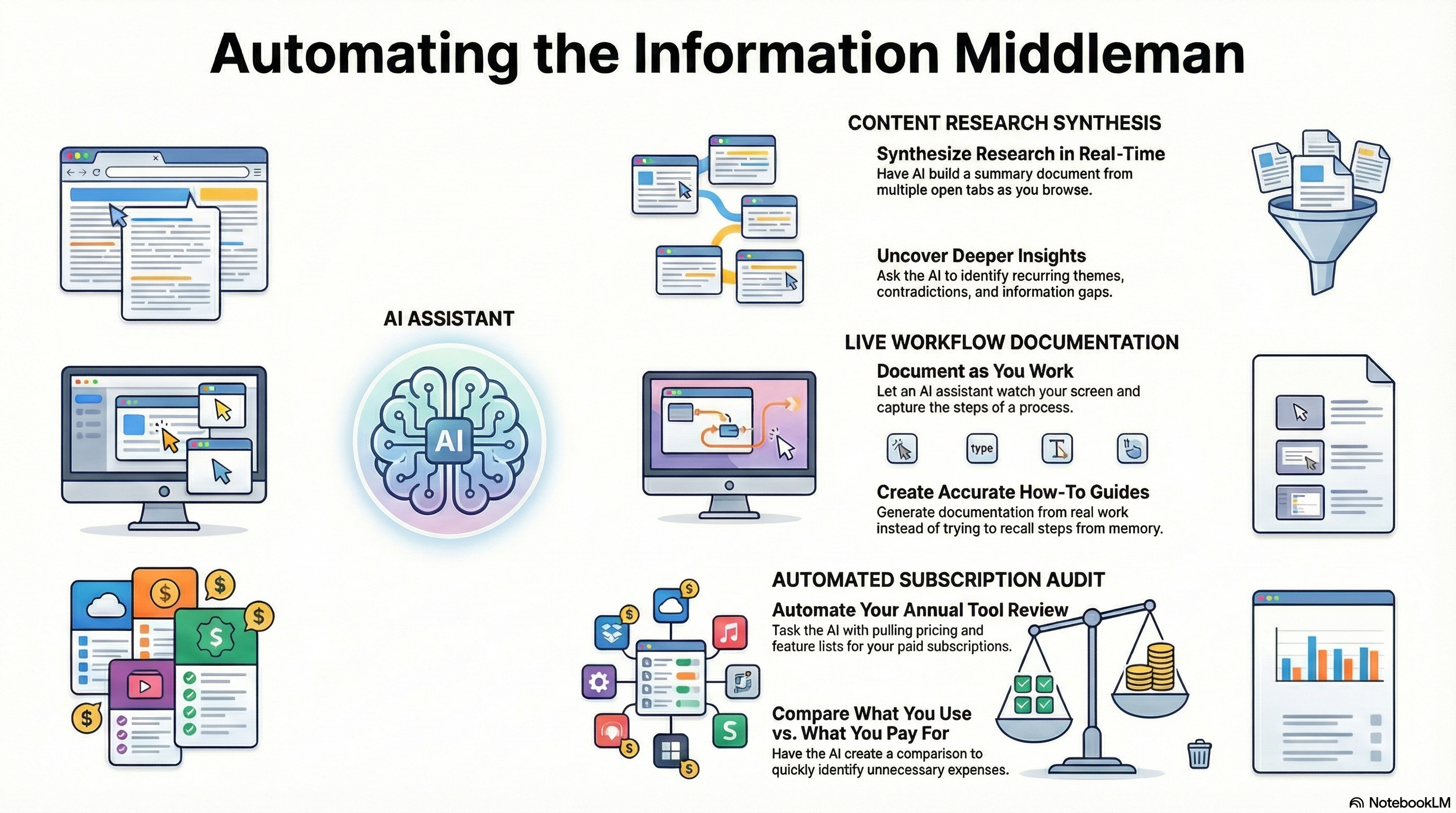
Content research synthesis. When I’m pulling together a cornerstone article, I usually have five or six tabs open with reference material.
Instead of reading everything, taking notes, then writing... having Claude build a synthesis document while I browse. What themes keep appearing? What contradicts? What’s missing?
Workflow documentation. I’ve got processes I do repeatedly but haven’t documented.
Next time I walk through one, I’ll have Claude watch and capture the steps as I go. Real documentation from real work instead of trying to remember later.Subscription audit. Opening each tool I’m paying for, having Claude pull the pricing page and feature list, then building a comparison of what I’m actually using versus what I’m paying for.
The annual “why do I have this?” review, but faster.
The pattern is the same: anywhere I’m currently the middleman between information and action, Claude might be able to handle the translation directly.
Tools Worth Trying
If you want to experiment with browser-based AI, here’s where I’d start:
Claude for Chrome (what I’m using). The extension sits in your sidebar, and you can see whatever tabs you have open. You control when it’s active. It waits for your approval before taking action, which matters if you’re cautious about AI doing things autonomously.
Wispr Flow (voice layer). If typing prompts interrupt your flow, Wispr adds voice dictation. Talk to Claude instead of typing. It helps you stop self-editing while typing so you can get your real ask in the first place.
Your existing tools first. Before adding anything new, check what you already have. ChatGPT has a browser feature. So does Perplexity. If you’re paying for something with browser capability, test the edges of what it can do before subscribing to something else.
The point isn’t to collect more tools. It’s to actually use the ones you’re already paying for.
The Permission You Might Need
If you’re like me, you’ve probably pigeonhole your AI tools into specific use cases. “This is my writing tool. This is my research tool. This is my code helper.”
But browser-based AI doesn’t care about your categories. It sees what’s on screen. That’s it.
The question isn’t “what is this tool for?” The question is “what can this tool see, and what could it do with that visibility?”
I used Claude in Chrome for diagnostics and summaries because that’s where I started. The inbox triage and form completion were always possible. I just never asked.
Maybe you haven’t either.
What’s one thing you do in your browser every week that involves shuffling information between tabs? That’s probably your next experiment. Reply and tell me what you’re going to try.
If You’re Catching Up
This connects to a few experiments I’ve been running:
Small experiments during chaos. Same energy as today’s piece.

Why I moved my Weekly 5 from Claude to Notion. Tools should fit where your work already happens.

Inspired by Joel Salinas’s article on AI browser usage. His take focused on safety and the choice between dedicated AI browsers versus extensions. Mine is simpler: I was underusing what I already had.