


Habits are hard to break. Whether it’s over-checking your email inbox or overindulging in your favorite dessert, it’s something you know isn’t doing you any good but you do it anyway.
I’ve been building a Chief of Staff dashboard for the past few weeks — using AI to pull information into one location so I can concentrate on what needs my attention.
The goal was to not have 10+ tabs open trying to figure out where that one piece of information is or was. I’m making progress, but the email section was the weak link.
Three boxes showing unread counts — inbox, WPSS, read later — and a link to go triage, which was basically a link right to the main inbox. Displayed as just numbers. No intelligence behind them.
I could see how much was waiting. I couldn’t see what kind of waiting. Action items looked the same as plugin update notifications. A client question sat next to a Substack digest.
To actually do anything useful, I still had to open Gmail and sort through everything myself. Which meant I was checking email to figure out if I needed to check email.
That’s the problem I needed to solve before the dashboard could do its job.

Before the Script: Cleaning Up 18 Years of Gmail Labels
It didn’t just start with an automation of my inbox. I had to start with the folder system that was 18 years in the making. 50+ Gmail labels accumulated over many years of running a WordPress agency and building a consulting business. All part of the chaos.
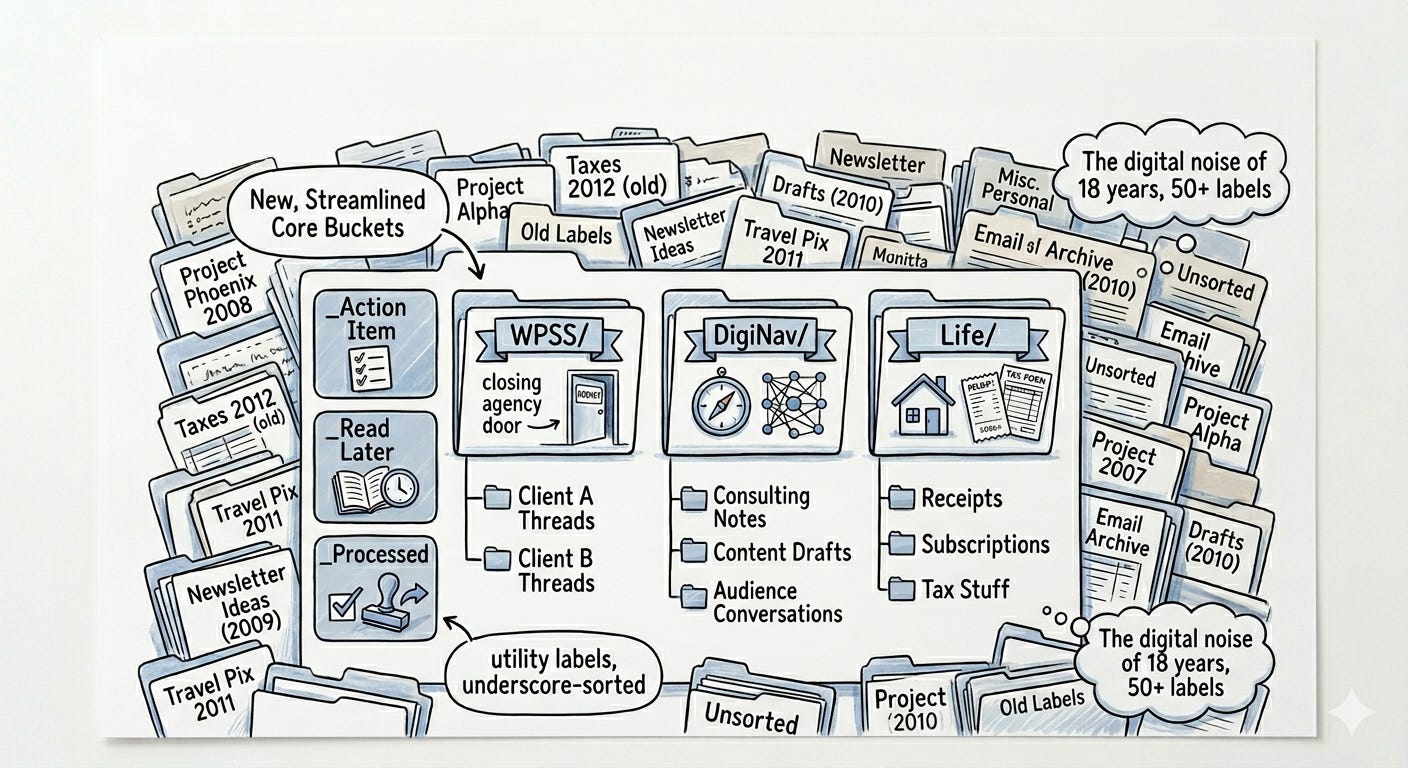
There were emails from clients who hadn’t been active in years. Others were duplicates with slightly different names. A few were things I couldn’t even remember creating, and some folders had zero messages in them.
You can’t automate a mess. If a script is going to sort emails into useful buckets, those buckets need to exist first and they need to make sense.
Knowing that I would be overwhelmed trying to organize all of that folder mess, I went to Claude AI and asked it to help me make heads or tails of the folder structure and how I could streamline it. I also took into account that now, with AI, it’s easier to find emails just by asking the AI to sort for you or by using the search function in Workspace.
And here’s where the reorganization ended:
WPSS/ — agency wind-down, all client-related threads in one place
DigiNav/ — consulting, content, audience conversations
Life/ — personal, receipts, subscriptions, tax stuff
Utility labels (underscore-prefixed so they sort to the top of the sidebar):
_Action Item— needs a response or decision_Read Later— worth reading when there’s time_Processed— the script’s audit trail
This is the non-glamorous work that people don’t talk about. It took a full session with Claude to sort through the chaos. But the upside was that it only took a few hours of conversation, as opposed to weeks of trying to figure out what was where and how to reorganize it.
Why I Used Gemini and Google Apps Script
So I moved the conversation from Claude to Gemini. The AI piece — sorting emails by judgment, not just pattern matching — wasn’t going to happen with Gmail filters or manual checking. But making that sorting automatic wasn’t clear until I started working inside Google’s ecosystem.
The reason for Gemini was simple: it lives inside Google Workspace. And there were some non-negotiables I wanted to make part of the process:
Read Gmail natively
Write a script that would automatically trigger
Set those triggers to be time-based
Not add another app that wasn’t already in the flow of tools I use
Gemini suggested the Apps Script approach. A script that runs on a timer, reads unread emails, uses AI to classify them, and applies the right labels. I set it to run every hour.
From there, the script would sort emails into three buckets:
Action Items — anything that needs a response or a human decision
Read Later — content worth reading when I have time
Noise — notifications, plugin updates, form submissions, system alerts with zero human attention value
And the best part — Gemini correctly wrote the script based on best practices. It also gave me step-by-step instructions to not only install the script but to run the tests. I already knew how to do that, but if that’s not something you’re familiar with, Gemini can walk you through the whole process too.
Testing the Email Triage Script
The first test run put everything into Action Items. Every email. The rules weren’t specific enough about what counted as noise or read-later, so the script defaulted to the safest bucket. If you don’t tell AI what noise looks like, it assumes everything matters.
So I tightened the rules. Got very specific about what counts as noise:
WordPress plugin update notifications
Automated form submissions
System alerts with no required action
And what counts as read-later:
Newsletters and articles
Informational updates with no response needed
The pendulum swung the other way. Everything landed in Read Later. Noise got a few scraps. Action Items was nearly empty.
Then there was the archiving problem. The script was archiving emails before the labels fully applied. Emails were disappearing — no inbox, no folder, just buried in Gmail’s archive. The fix was the same one from my earlier manual triage: label first, pause, then archive.
The _Processed folder became the safety net I didn’t know I needed. Every email that went through the script got tagged. When the counts didn’t add up or a category felt light, I could open that folder and see exactly what the script had done. It wasn’t just a label — it was the audit trail that let me refine the rules without losing anything and without reverting to checking the inbox myself.
The Anxiety of Letting Go
The system was working. The rules were dialed in. Emails were sorting into the right buckets every hour. And I still felt anxious about it.
The inbox was nearly empty, and my brain read that as something’s broken.
It wasn’t. It was working. The script was processing every hour, which meant email never had a chance to pile up the way it did when I was checking three or four times a day.
I was so used to seeing a wall of unread messages — and sorting through it as a kind of productivity ritual — that an empty inbox felt like a system failure.
I was getting in my own way. I’d second-guess how the script sorted things because I wasn’t the one making the call. I’d peek at the inbox to see if something got missed.
The whole behavior I was trying to automate away, I was recreating in a different form.
After a few more test runs, I looked at the Processed folder, confirmed the sorting was accurate, and made a conscious decision: stop opening the inbox. Go to the folders. Work from there.
That sounds simple. It was the hardest part of the entire build.
What the Email Triage Dashboard Looks Like Now
With the triage script running and the folder structure in place, the Today tab on my dashboard finally had what it needed.
Before: Generic unread counts. How much is piling up.
Now: Three intentional boxes:
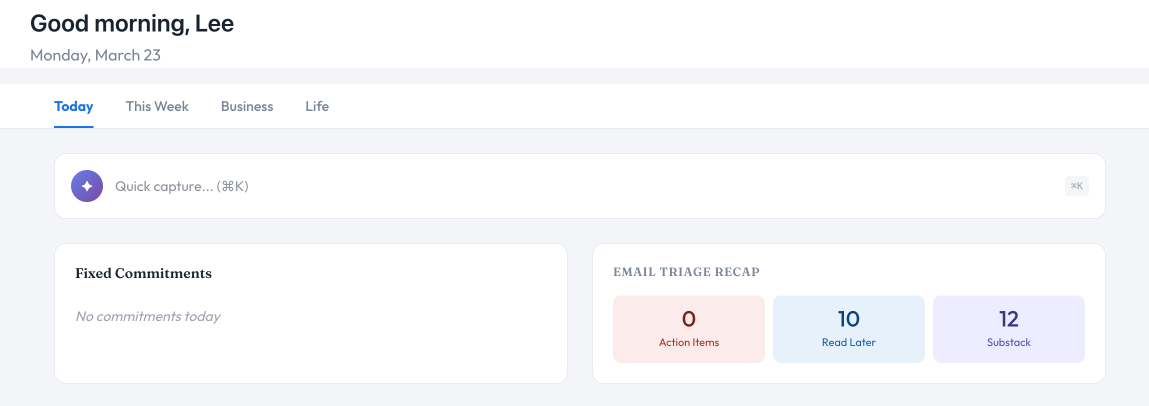
Action Items (red) — what needs a response
Read Later (blue) — what’s worth reading when I have time
Substack (purple) — engagement and reading, on its own schedule
Each box links directly to the Gmail label view. I go to the bucket that matches the energy and time I have.
Fifteen minutes between tasks? Check Action Items, knock out quick replies. Slower afternoon? Open Read Later and catch up on content. Ready to engage? Head to Substack and spend time on the conversations that matter.
The email section went from the weakest part of the dashboard to the piece that makes the rest of it work. Because now I’m not spending the first twenty minutes of my day sorting. I’m spending it deciding what to act on.
And with the triage running, the obvious next question was whether AI should handle the responses too.
The Line I Chose to Keep
I considered having AI draft responses. That’s the natural next step, right? Triage the email, then generate a reply so all you do is review and send.
I pulled back. Not because I think there’s anything wrong with it — plenty of people use AI for email drafting and it works for them.
But for the way my brain operates, I need to be fully present in the ask. When someone emails me a question, I need to read it, understand the context, figure out whether it’s technical or logistical or relational. That’s where I serve my clients and colleagues. If AI drafts the response, I’m reviewing words instead of understanding the need.
The triage handles sorting. The responding stays human.
That’s not a limitation of the system. It’s a design decision about where AI helps and where I need to stay in the loop.
What Automating Email Triage Actually Taught Me
Making the most of the tools that were already in my ecosystem was the gold of this whole experiment. Google Workspace, Gemini, and Apps Script were all sitting there waiting to just be connected and used. I didn’t need a new platform or another paid automation tool or the added expense of another AI platform.
But really the tools were secondary. Before any of that mattered, I had to organize what I was automating. 18 years of folders and labels wasn’t a system. It was sediment. Cleaning that up was the unglamorous foundation that made everything else possible.
And through all of this, the hardest part wasn’t the technical build. It was the behavioral changes:
Trusting the system
Trusting it enough to stop checking email
Recognizing that an empty inbox means the automation is working, not that something’s broken
Knowing where to draw the line between what AI handles and what stays mine
The script is still in testing mode. I need to give it time to work out any of the other kinks. I’m letting it run and watching how it’s sorting and adjusting based on the edge cases that come up. That’s how it should work. Not a launch-and-forget deployment, but building trust — with the system and with myself.
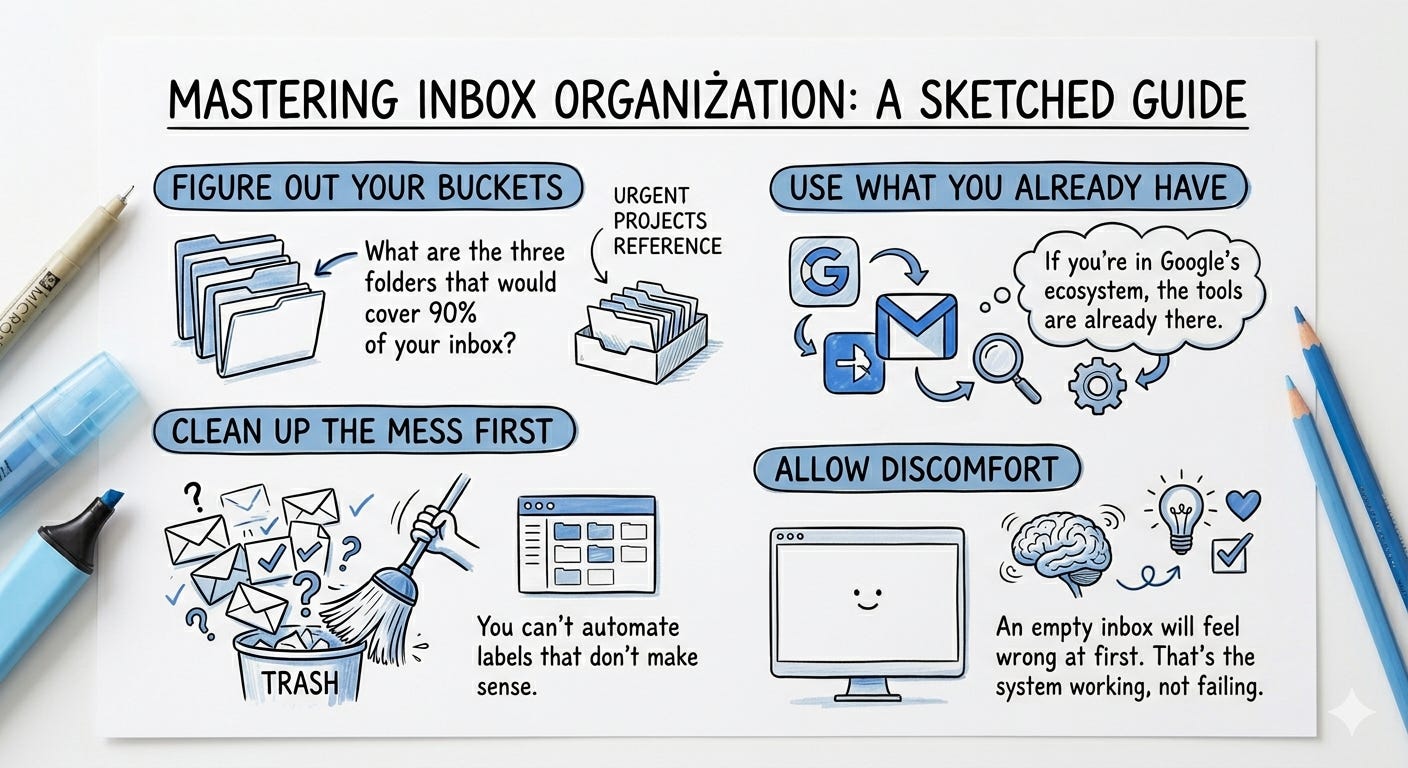
If you’re thinking about automating email triage, start here:
Figure out your buckets. What are the three folders that would cover 90% of your inbox?
Clean up the mess first. You can’t automate labels that don’t make sense.
Use what you already have. If you’re in Google’s ecosystem, the tools are already there.
Give yourself permission to feel uncomfortable. An empty inbox will feel wrong at first. That’s the system working, not failing.
The script is the easy part. Changing how you interact with your inbox is the real work.
This is part of an ongoing series documenting the build of a Chief of Staff dashboard — a personal command center for managing two businesses. The email triage was the missing piece that unlocked the Today tab.
Previous in this series:

What are the three folders that would cover 90% of your inbox? Reply and tell me — I’m curious how different they are from mine.
I have so much old stuff in my email folders I can get rid of... this is hugely appealing.
I'll have to sit down and really think through this before I jump in - because knowing myself (leap and then look), I might have a few "uh oh" moments if I don't, lol
I cleaned up my Gmail recently after various health setbacks had me neglecting it.
What I did wasn't perfect, so I'm going to bookmark this and go through it properly to see if I can fix it permanently.