

Five Tabs, Three Failed Dashboards, and One Decision
I had five tabs open every morning. Gmail for personal. Gmail for the business. Google Calendar. Google Tasks. And a Notion dashboard I’d built three different times — each version more organized than the last, each one quietly abandoned within weeks.
The data organization in Notion was solid. I’d give it that. But the UI never worked for me, and “organized” doesn’t matter if you stop opening it. Some days it was a forgotten wasteland.
Meanwhile, the real work — triaging two inboxes, checking what’s on the calendar, figuring out what actually matters today — was scattered across tabs I had to manually stitch together every morning. That daily stitching was bogging me down and stressing me out.
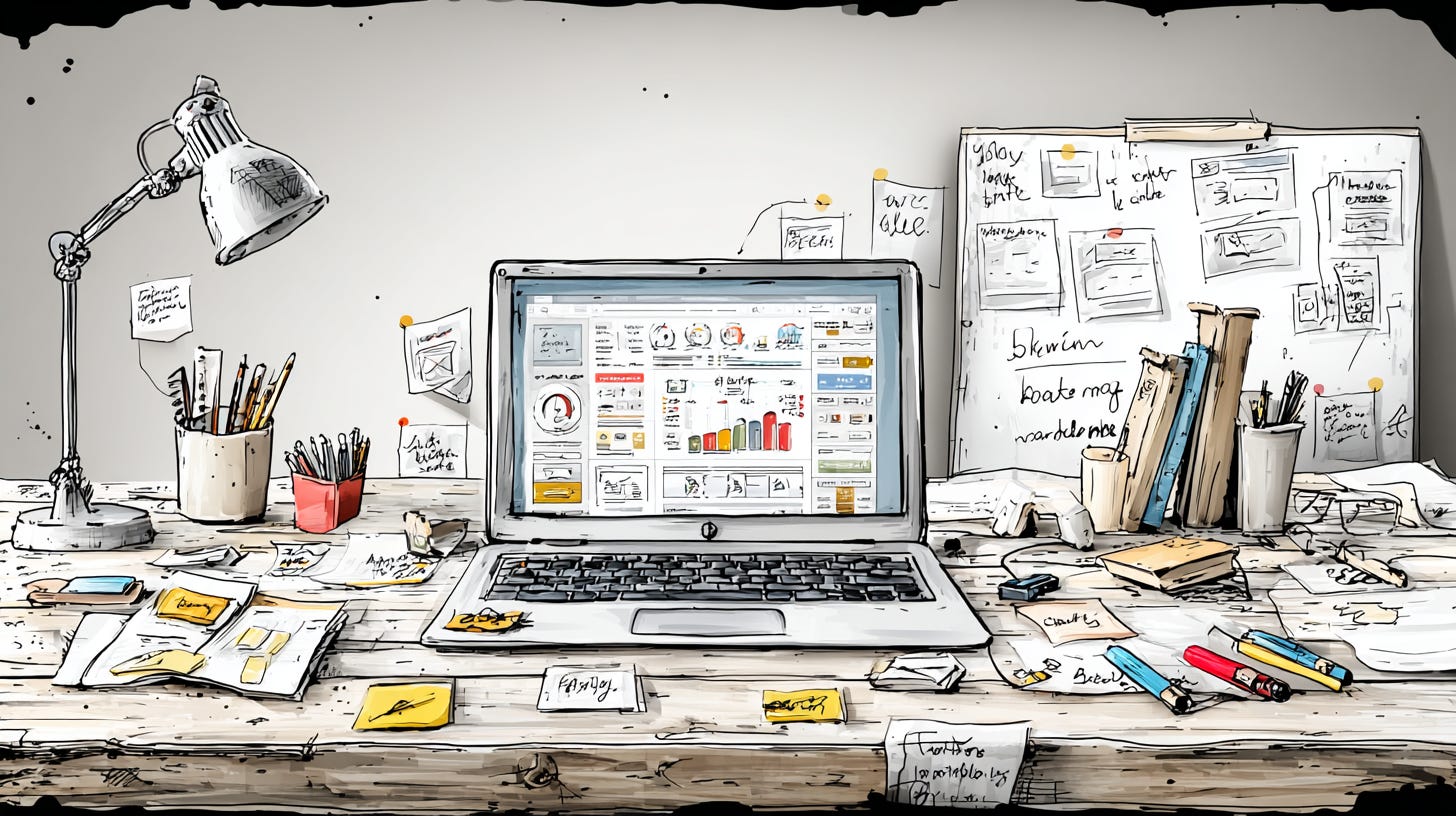
Before: five tabs, Notion ignored.
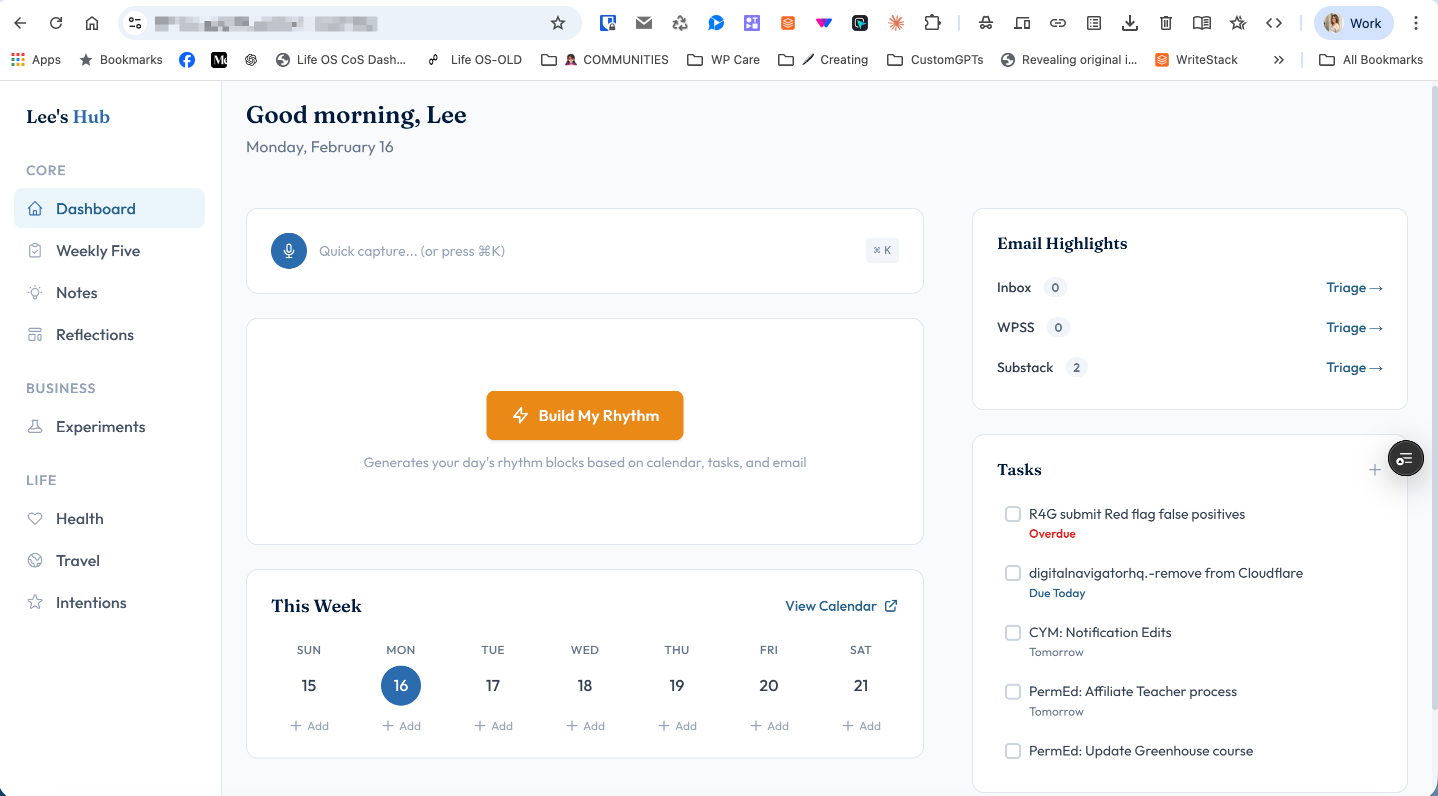
After: one dashboard, one rhythm.
I didn’t need another productivity system. I’d tried that. What I needed was something tailored. Built around how I actually work, pulling from the tools I was already using, structured around my energy and my priorities. Not someone else’s template.
So I built it. Using Claude, Claude Code, and Cursor, I built an AI Chief of Staff dashboard that does what no off-the-shelf tool could: sees everything in one place and helps me structure my day around it.
I’m a developer. I could have mapped this out the traditional way — architecture docs, wireframes, weeks of planning before writing a line of code. But that’s exactly the cycle I wanted to break.
What an AI Productivity Dashboard Actually Does
It connects to the tools I’m already using — two Google Workspace accounts, Google Tasks, Google Drive and eventually Notion — and pulls everything into one screen. Email counts from three sources. Today’s calendar. Tasks. Brain dump notes I’ve captured throughout the day.
Then the AI does the part I used to do manually: it builds my rhythm.
“Build My Rhythm” looks at all of that context — commitments, emails, tasks, my top five priorities for the week, appointments, brain dump notations. Then it generates time-blocked working sessions for the day. Not a task list. Not a project plan. Rhythm blocks. Each one has a purpose, a start time, and an end time. Mode-based, not checklist-based.
Think of it like a chief of staff who reviewed your calendar, scanned your inboxes, checked your priorities and handed you a structured day before your first cup of coffee. Except it costs pennies a day and runs on Claude’s API (an API is just a way for one app to talk to another — in this case, the dashboard asks Claude to think through your day and send back the plan).
The goal wasn’t another task list that would fade away. It was to use my best work times and workflows to structure my day.
Why Generic Productivity Tools Keep Failing
Here’s the pattern I keep seeing — in my own attempts and in conversations with other creators.
You find a tool that’s almost right. Notion’s data organization is genuinely good. Google Workspace handles email and calendar well enough. So you try to make them work together.
You build a Notion dashboard. You set up filters. You create views and databases. And for a while, it feels like progress.
Then you stop opening it.
Not because the system was bad. Because it wasn’t yours. It was someone else’s structure, with your data poured into it. The friction was just high enough that on a busy morning, you’d skip it. And once you skip it twice, it’s over.
My friend Kim Doyal hit the same wall. She liked Notion’s organization — same as me — but not the UI or the usability. Someone else’s system almost worked. So she built her own dashboard to solve it.
That’s the part most people miss. The problem isn’t discipline. It’s fit. Generic tools assume a single inbox, a single calendar, and a single way of working. I have two email accounts, newsletter folders, weekly priorities that live in a different system and brain dumps that need to feed into how I plan my day. No off-the-shelf tool handles that — because it wasn’t designed for my workflow.
The problem isn’t discipline. It’s fit.
How I Built a Custom AI Dashboard in Days
I didn’t follow a roadmap. I followed a pattern that kept repeating: figure out what I need, keep what’s already working, and let AI handle the parts I don’t want to spend weeks on.
Step 1: Define what your day actually needs.
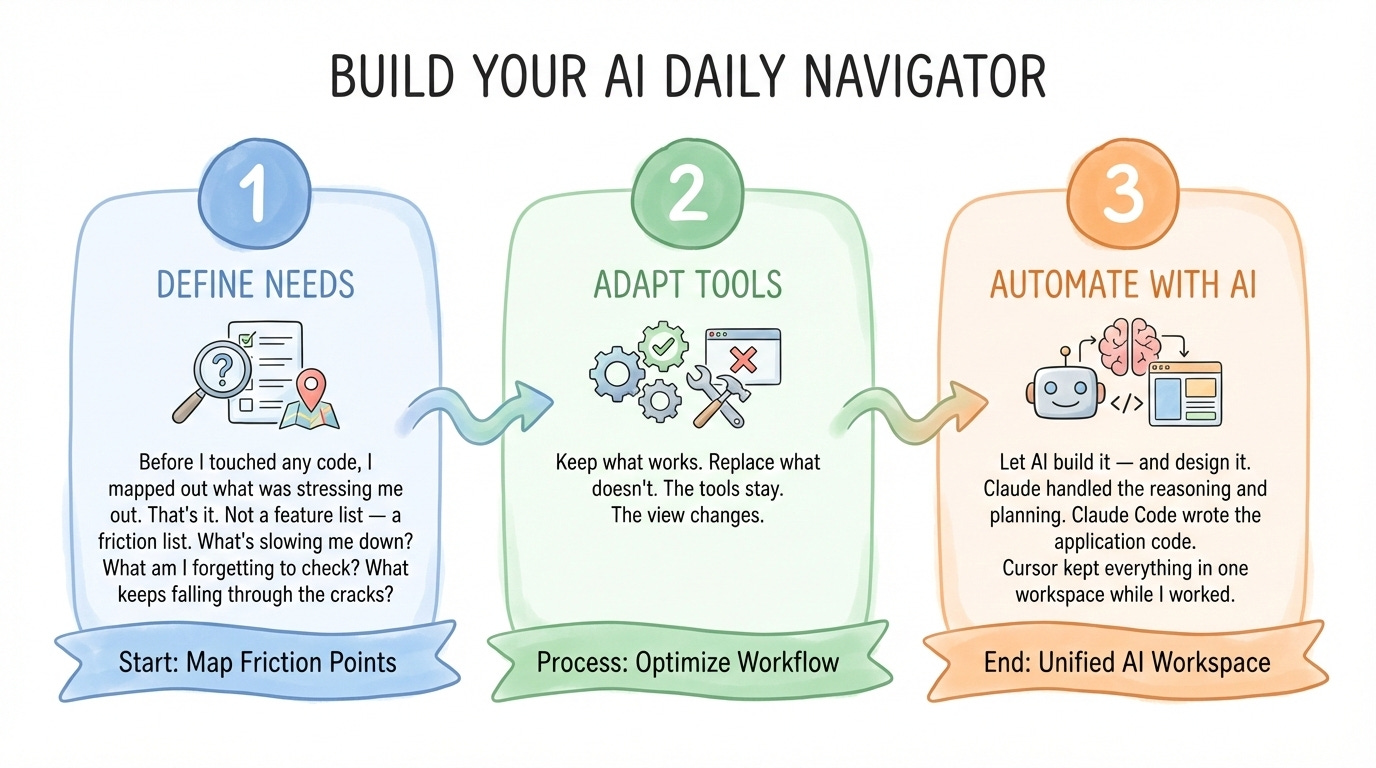
Before I touched any code, I mapped out what was stressing me out. Three email sources that needed triaging every morning. A task list of must-dos. The five things I want to accomplish each week to move my business forward. My calendar commitments. And a place to capture ideas throughout the day without breaking flow.
That’s it. Not a feature list — a friction list. What’s slowing me down? What am I forgetting to check? What keeps falling through the cracks?
Step 2: Keep what works. Replace what doesn’t.
Google Workspace was working: email, tasks, docs, calendar. I wasn’t going to replace those. Notion’s data organization was working. I wasn’t going to abandon that either. What wasn’t working was the layer on top: the thing that pulls it all together and makes it usable.
So the dashboard became a lens, not a replacement. It connects to Google’s APIs and shows me unread counts across all three email sources with “Triage →” links that open the right Gmail label. It pulls calendar events from both accounts. It reads my tasks.
Quick Capture writes brain dumps straight to Google Drive with auto date headers and a “Captured Today” count.
The tools stay. The view changes.
Step 3: Let AI build it — and design it.
This is where it got interesting. I saw Kim Doyal’s dashboard and loved the layout— clean and easy to navigate. That was my missing visual reference. So I uploaded a screenshot to Claude and asked it to help me write the proper prompt for how it should be coded.
Claude handled the reasoning and planning. Claude Code wrote the application code. Cursor kept everything in one workspace while I worked. The Claude API powers the daily rhythm generation: “Build My Rhythm” sends all my dashboard data to Claude and returns a structured day, color-coded by category.
Here’s what it actually took: a code editor, a hosting platform, and API access. That’s the infrastructure. The thinking is the part only you can do. What do I need? What’s already working? What should the day look like?
The AI handles the technical translation. You bring clarity to your own workflow.
I went from concept to a working dashboard in days, not weeks. Not because I skipped the hard parts — because the hard part was knowing what I needed. And I already knew that.
Tailored means yours. Your dashboard won’t look like Kim’s or mine. It shouldn’t.
What Building Your Own Dashboard Actually Takes
If you’ve ever written a brief for a contractor — “here’s what I need, here’s how I work, here’s what matters” — you have the skills this takes.
Building a tailored dashboard isn’t a coding exercise. It’s a clarity exercise. Once you know what you need — your inputs, your workflow, your priorities — AI walks you through the build. Step by step. Clear instructions. Each piece connects to the next. Think of it less like programming and more like following an SOP that gets written for you as you go.
Claude, Claude Code and Cursor handle the technical translation. You follow the steps.
What they can’t do is tell you what your morning needs to look like. They can’t decide that you need to triage three email sources before your first creative block. They can’t know that your best thinking happens before noon, or that your weekly priorities need to be visible while you plan your day.
That’s the work. And it’s work you’ve already done — you just haven’t written it down in a way that becomes a system.
The scary part isn’t the technology. The scary part is admitting that the tools you’ve been using aren’t working and committing to something built around how you actually operate. Once you make that decision, the build is the easy part.
Key Takeaways
If you take away only five things from this, make them these.
The problem isn’t discipline — it’s fit. If your productivity system keeps becoming a forgotten wasteland, it’s not because you’re lazy. It’s because it wasn’t designed around how you actually work.
Start with your friction list, not a feature list. What’s slowing you down? What are you forgetting to check? What keeps falling through the cracks? That’s your blueprint.
Keep what works. Replace what doesn’t. You don’t need to abandon Google Workspace or Notion. You need a better layer on top — a lens that pulls it all together.
AI makes the build accessible — but only you can define the need. The technical parts are handled. The hard part is knowing what your morning, your workflow, and your priorities actually require.
Tailored isn’t one-and-done. Your solution keeps evolving because your work does. Phase 1 ships. Phase 2 fixes and automates. The system grows with you.
The Cost of Staying Scattered
Here’s what staying in the cobbled-together setup actually costs you.
Every morning you spend stitching tabs together is a morning you’re not doing the work that moves things forward. Five minutes here, ten minutes there — checking this inbox, switching to that calendar, opening a Notion page you haven’t touched in a week. It adds up.
Not just in time, but in mental load. By the time you’ve assembled the picture of your day, you’ve already burned through your best energy figuring out what to do instead of doing it.
And every system you’ve abandoned? That wasn’t a failure of discipline. That was a signal. The tool didn’t fit, so you moved on rather than forcing it. The problem is that “moving on” usually means moving to another generic option that will hit the same wall.
That’s the real cost. Not the wasted setup time.
The slow bleed of mornings that never quite start right. The weekly priorities that drift because they weren’t visible when you were planning. The brain dump ideas that never fed back into your rhythm because they lived in a different tool.
You already know what you need. The question is whether you keep adapting to tools that weren’t built for you — or build something that was.
Start With Your Friction List
When nothing fits, build it.
That’s not a slogan. It’s what I did when three versions of Notion dashboards failed. It’s what Kim did when she hit the same wall. And it’s what the tools — Claude, Claude Code, Cursor — are making possible for anyone willing to start with one question: What does my day actually need?
My dashboard pulls from two email accounts, Google Tasks, Google Calendar, Google Drive and soon Notion. It generates rhythm blocks based on my energy, my priorities, and my commitments. Yours won’t look anything like that. It shouldn’t.
Maybe yours needs to surface client deadlines alongside your content calendar. Maybe it needs to track invoices and project status in one view. Maybe it’s simpler — just your top three priorities and today’s calendar, visible the moment you open your browser.
Whatever it is, it starts with your friction list. What’s not working? What are you stitching together every morning? What keeps getting ignored?
I’m still building. Now that Phase 1 is shipped, it’s time to test and find the parts that aren’t quite right. I can already see a few tiny adjustments before I move on to Phase 2, the automation layer that will make it a true chief of staff. Tailored isn’t one-and-done. It evolves because the work does.
If you’re sitting on a version of this problem — tools that almost work, systems you keep rebuilding, mornings that start scattered — I’d love to hear what your friction list looks like. Reply and tell me what’s not working. That’s where it starts.
And if you want help figuring out what your tailored solution could look like, book a quick session and we’ll cut through the noise together.
And the next step is to make it a generic dashboard that everyone can customize and use it :D
Yay! I'm glad you jumped in and got it working.
I can't wait to see how it works for you ongoing - I keep adjusting/tweaking things, but I love mine.